

Respondus LockDown Browser Student Guide
- last updated on 30 April 2025
We strongly recommend that students go through the steps of using the Respondus LockDown Browser to attempt a Canvas practice quiz (mock examination) before the actual examination. If you do not see a mock examination quiz that requires the LockDown Browser in your Canvas course, please contact your course leader / course teacher for assistance.
- Respondus LockDown Browser in the CSC Rooms
- Installing LockDown Browser on your Personal Windows Computer
- Installing LockDown Browser on your Personal Mac Computer
- Running LockDown Browser on iPad
(Respondus Official Instruction) - Attempting a Quiz with Respondus LockDown Browser
- Troubleshooting Problems
Respondus LockDown Browser in the CSC Rooms
- Please boot into Windows as the option when starting up the student LAN computer.
- Once you are logged into Windows using your CityUHK EID and password, you should see the LockDown Browser icon on the desktop screen.
-
If you cannot find the LockDown Browser icon on the desktop screen, install it after clicking "Respondus Lockdown Browser ...... (Canvas)" under the "Departmental Software" section on the Work Desk page which the shortcut icon is also located on the desktop screen.
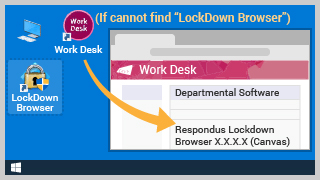
- To start the quiz, please follow the steps of Attempting a Quiz with Respondus LockDown Browser in a regular web browser such as Google Chrome, Mozilla Firefox or Microsoft Edge.
Installing LockDown Browser on your Personal Windows Computer
Please download the LockDown browser installation file from the below webpage.
https://download.respondus.com/lockdown/download.php?id=997146130

-
Once you click on the installation file, please click Yes to allow the installation.

-
Choose Setup Language: English (United States)

-
On the "License Agreement" screen, select the I accept the terms of the license agreement option, then click the Next button.

-
After successful installation, click the Finish button on the "InstallShield Wizard Complete" screen.

-
The LockDown Browser icon will appear on your desktop and under the "Respondus" folder on the program menu.

Installing LockDown Browser on your Personal Mac Computer
Please download the LockDown browser installation file from the below webpage.
https://download.respondus.com/lockdown/download.php?id=997146130
-
Once you click on the installation file, please Allow the installation.

-
On the "Introduction" and "Licence" parts, click the Continue button.

-
Please Agree on the license agreement.

-
On the "Destination Select" part, select the "Install for all users of this computer" option and then Continue.

-
Click on the Install button to process.

-
After "Installation" and "Configuration", the message "The installation was successful." would appear on the screen. Please click the Close button.

-
Click on the LaunchPad icon from the Dock, and the LockDown Browser icon will be shown.

Attempting a Quiz with Respondus LockDown Browser
- Log in to Canvas using a regular web browser such as Google Chrome, Mozilla Firefox or Microsoft Edge.
-
Go to the course, click on Quizzes from the course navigation, and then click on the quiz title.

After clicking on the quiz title, you may click on the Take the Quiz button, and then the warning heading Respondus LockDown Browser Required would be shown.

 Please open the LockDown Browser from the program menu (Windows ) or Launchpad (Mac OS ).
The LockDown Browser would automatically visit the CityUHK Canvas login screen. Please Sign In using your CityUHK EID and password in the LockDown Browser again. Then go to the course quiz and click on the Take the Quiz button to start the quiz.
-
Once you open the Respondus LockDown Browser, you might be asked to close a few applications. Please allow it to close those applications.
Windows: click the Close Process button
Mac OS: click the Close Applications button
-
Once you finish the quiz, please remember to click the Submit Quiz or Submit button to complete the quiz.

-
After Submit Quiz, you can close the LockDown Browser.
Windows: click the X button from the top right corner, then click YesMac OS: click the X button from the top left corner, then click Quit

Troubleshooting Problems
The following articles are on the Student Support section of the "Respondus Technical Support" website.
- Blank screen during exam
- warnings
-
0x-AWS-xxx Unable to connect to Respondus Server (AWS)
Students located outside Hong Kong who are experiencing loading issues with stable internet connections should try to connect to the CityUHK VPN service. Please refer to the CSC - VPN Connection Setup Guide for instructions. - The browser cant be used in virtual machine software such as Virtual PC, VMWare and Parallels.
- Update server is not supplying information, or the connection to update server is blocked.
- There is a problem with the settings for this exam
-
0x-AWS-xxx Unable to connect to Respondus Server (AWS)