New Features to Improve Online Exam Facilitations
With the rapid shift of education delivery from face-to-face to online during the COVID-19 pandemic, e-learning tools have become essential for daily teaching and learning activities. When it comes to examinations, teachers dream of a subject-adaptive solution that is safe, reliable and fair. Although a perfect solution is still far away, there are new features in Zoom and Turnitin to improve online exam facilitations.
Enhancing Proctoring with Zoom
The e-Learning Team has evaluated Zoom focus mode for invigilation purposes and a new proctoring feature in CLASS for Zoom, a third-party package to the existing Zoom services. Both updates can enhance the two-device proctoring approach at CityU to prevent cheating in the examinations.
With Zoom focus mode enabled, visual communications among students are blocked entirely. Instead of a typical gallery view, each student only sees his/her video plus the invigilator (Fig. 1). Hence, the invigilator may watch all students holding their CityU ID cards via Device 1 (front camera) and their exam environments via Device 2 (side camera) videos with no privacy concerns. If a closer look is needed, the invigilator can ask one of the students to share his/her computer screen on Device 1 without affecting the rest of the class. In short, the invigilator can better monitor the students during the online exam. For detailed instructions, please refer to this link.

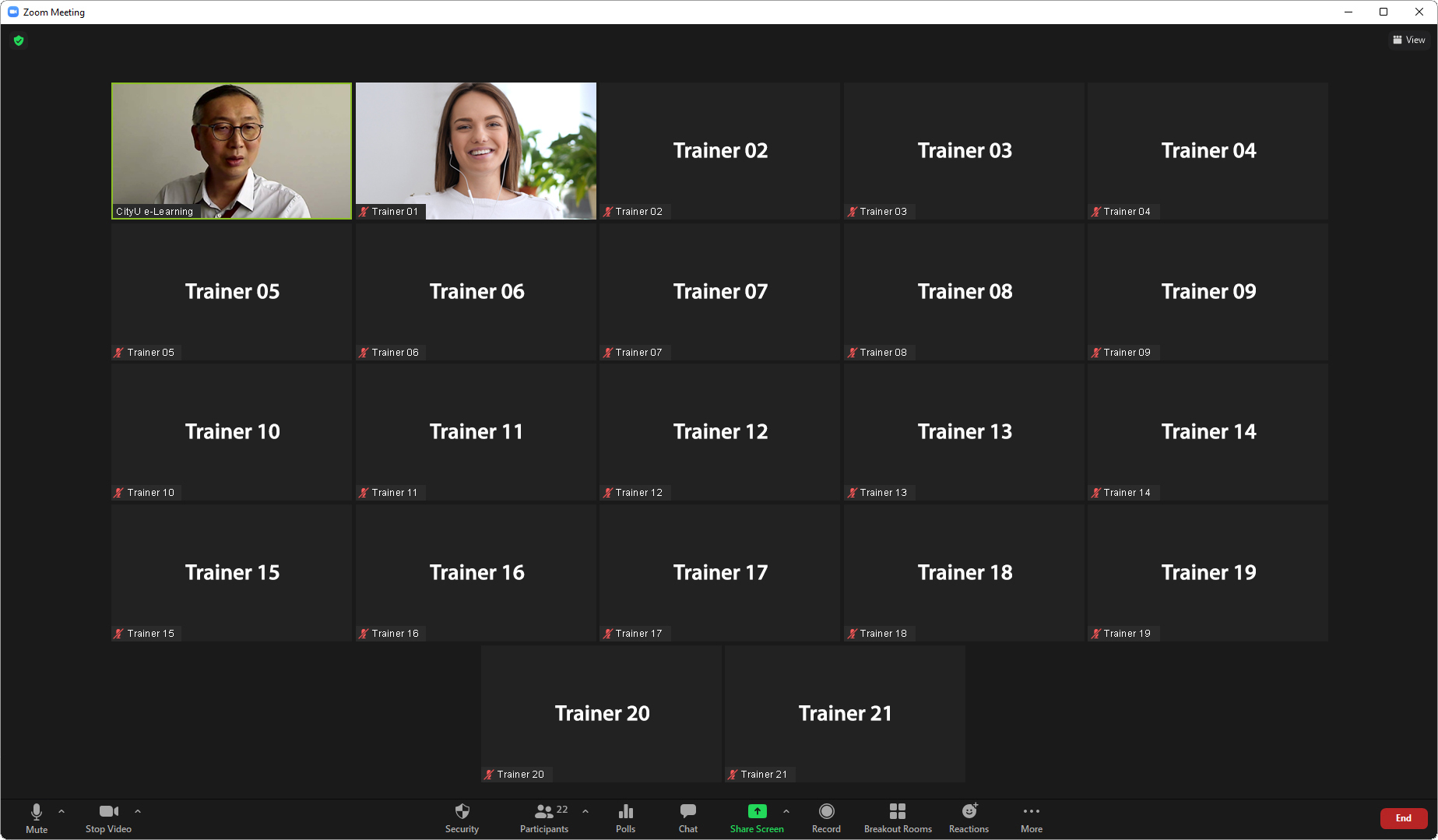
Figure 1: Zoom focus mode – teacher view vs student view
CLASS for Zoom is a virtual classroom application built on top of Zoom specifically for teaching and learning. A new proctoring feature has been recently launched, allowing teachers to simultaneously monitor all students’ cameras and computer desktops (Fig. 2). Unfortunately, the pilot feature only supports up to 5 examinees at this moment. We shall keep monitoring the development for possible applications.

Figure 2: CLASS for Zoom proctor view
Templates for Turnitin to Exclude Irrelevant Matchings
In both assignments and examinations, students may require to input their work on a specific template provided by the teacher. Turnitin will include such similarities in the reports and increase the matching percentages. To improve the accuracy of the similarity indices, Turnitin now supports exclusion by uploading a template file.
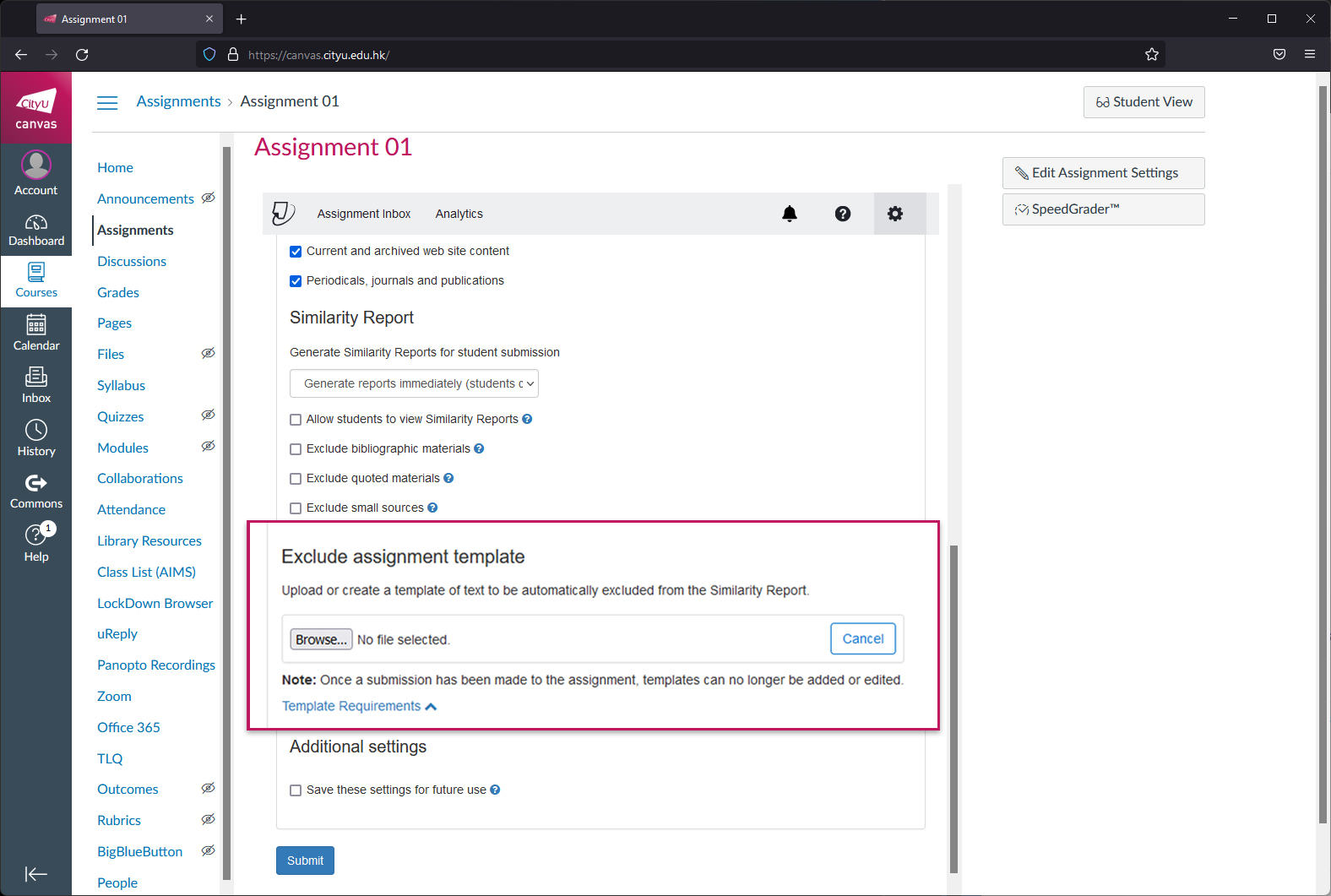
Figure 3: Template exclusion in Turnitin assignment settings
Teachers can upload the template files (Fig. 3) up to 100MB with at least 20 words of text to each Canvas Assignment shell with Turnitin enabled by selecting “External Tool” for Submission Type (also called the LTI method). The supported formats include Microsoft Word, Excel, PowerPoint, WordPerfect, PostScript, PDF, HTML, RTF, OpenOffice (ODT), Hangul (HWP), and plain text. Alternatively, teachers can create the custom template inside Turnitin directly. The exclusion can be switched off in individual reports (Fig. 4), just like other similarity filters. For more information, please visit the instructions at http://www.22kk77.xyz/elearn/elearn_ins_canvas-turnitin-externaltool-create.html.

Figure 4: Template exclusion control in Turnitin report interface
We hope CityU colleagues find the new features in Zoom and Turnitin useful in the upcoming examinations. For any enquiry about e-Learning, please contact us at elearn@cityu.edu.hk or 3442-6727.